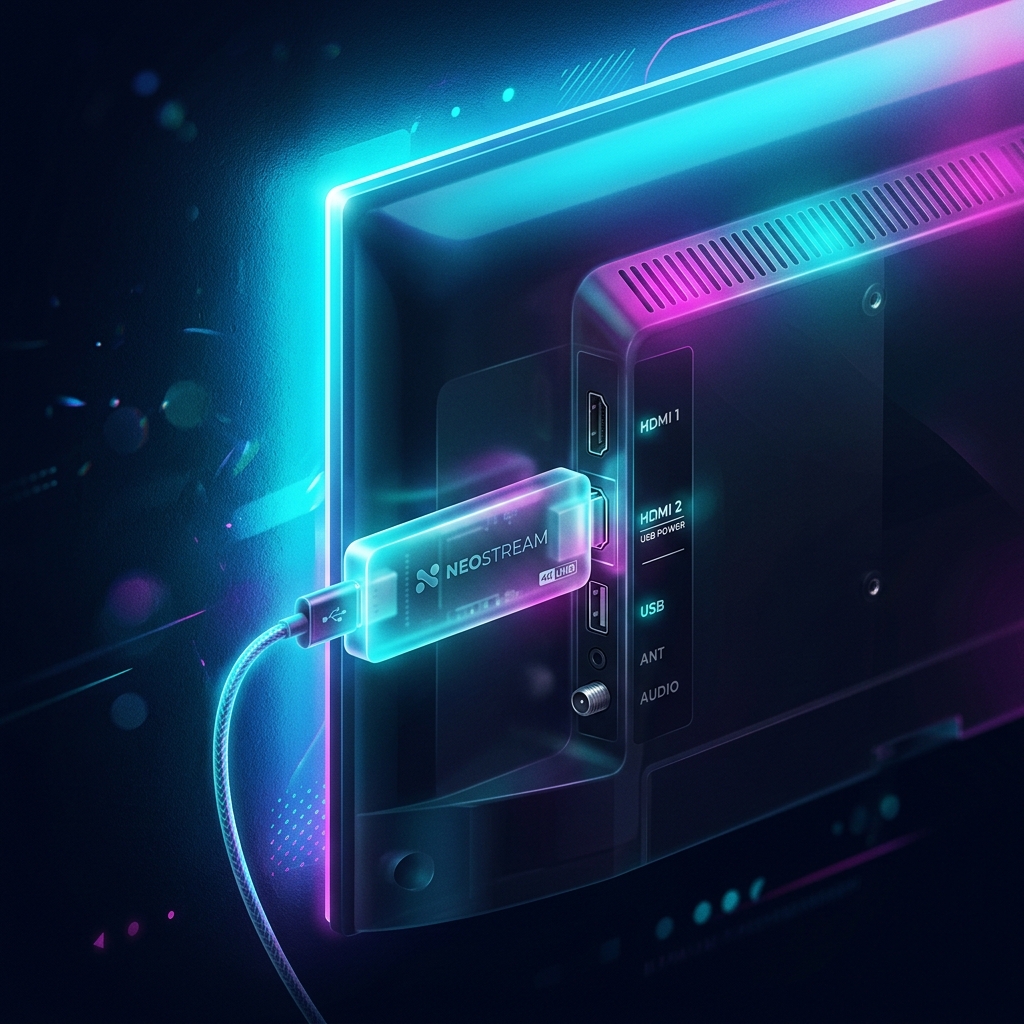
If there is one piece of hardware that has revolutionized the digital streaming landscape over the past decade, it is undeniably the Amazon Fire TV Stick. This incredibly affordable, thumb-drive-sized device packs enough processing power to decode 4K video feeds and, more importantly, it operates on a modified version of the Android operating system. This underlying Android architecture makes setting up iptv on firestick the most popular and straightforward method for cord-cutters in the UK. Whether you have just purchased our premium subscription or are exploring your hardware options, this comprehensive 2026 guide will walk you through the exact process from unboxing to watching live sports.
The core advantage of using iptv on firestick compared to native Smart TV operating systems is the concept of ‘sideloading’. Because Amazon maintains a curated official app store, many of the best third-party streaming media players (like specific versions of Smarters Pro or XCIPTV) are not natively listed. Sideloading bypasses this restriction, allowing you to install any Android application (.apk file) directly from the internet. This guide will demystify sideloading and show you how to securely configure your device for maximum streaming performance.
Phase 1: Preparing Your Firestick for Sideloading
By default, Amazon disables the ability to install applications from outside their official Appstore to protect novice users from accidentally downloading malicious software. To set up iptv on firestick properly using the best players, we must first tell the device to allow ‘Apps from Unknown Sources’.
- Power on your Firestick and navigate to the Home screen.
- Scroll to the far right of the top menu bar and select the Settings icon (the gear symbol).
- Scroll down and select My Fire TV.
- Select Developer Options. (Note: If you do not see ‘Developer Options’, select ‘About’, highlight ‘Fire TV Stick’, and click the ‘Select’ button on your remote 7 times rapidly. A message will appear saying “You are now a developer”. Press the back button to find Developer Options now visible).
- Toggle Apps from Unknown Sources to ON.
- Toggle ADB Debugging to ON (this can help with certain app installations).
Your device is now officially ‘unlocked’ and ready to accept third-party applications.
Phase 2: Installing the Downloader App
Because the Firestick does not come with a standard web browser like Google Chrome built-in, you cannot simply go to a website and click ‘download’ to get your streaming apps. You need a bridge application. This bridge is a free tool called ‘Downloader’, which is officially available in the Amazon Appstore.
- Return to the Firestick Home screen.
- Select the Find icon (the magnifying glass) and select Search.
- Type the word Downloader using the on-screen keyboard.
- Select the Downloader app (it has an orange icon with a downward-pointing arrow).
- Click Download or Get to install it.
- Once installed, click Open. When the app asks for permission to access photos, media, and files on your device, click Allow. This is necessary for it to save the files it downloads.
Phase 3: Sideloading Your Chosen IPTV Player
Now that you have Downloader installed, the process of getting iptv on firestick becomes incredibly simple. You use Downloader to enter a specific URL or a shortcode, which pulls the installation file (APK) directly from a secure server. While there are many apps available, we strongly recommend IPTV Smarters Pro or TiviMate for the best experience.
To install Smarters Pro (as an example):
- Open the Downloader app.
- Select the URL box in the center of the screen.
- Enter the official download link provided by your premium provider. (For general use, searching the web for the official Smarters APK link is required, though our support team provides specific fast-download codes to our customers upon purchase).
- Click Go. The APK file will begin downloading.
- Once the download reaches 100%, an installation prompt will appear automatically. Click Install.
- After installation, click Done (do not click Open yet). You will return to Downloader. Click Delete on the popup window to remove the installation file; this saves valuable storage space on your Firestick.
Phase 4: Entering Your Subscription Credentials
With your player application installed, the final step in establishing iptv on firestick is to link it to our secure servers. Return to the Firestick Home screen, go to ‘Your Apps & Channels’, and open the application you just sideloaded (e.g., Smarters Pro).
When you open the app, you will be prompted to log in. Always select the option labeled “Log in with Xtream Codes API”. You will be presented with four fields:
- Name: Enter anything you like (e.g., ‘Premium UK TV’).
- Username: Enter the username we provided you upon purchasing your subscription.
- Password: Enter the password provided (remember, this is strictly case-sensitive).
- URL/Portal: Enter the server URL we provided.
Click ‘Add User’. The app will take a minute or two to download the channel list, movies, series, and the EPG. Once finished, you are ready to stream.
Crucial Optimization Tips for Firestick Users
Running iptv on firestick is fantastic, but the hardware has limitations. The standard Firestick relies entirely on Wi-Fi, which is susceptible to interference. If you experience buffering, the absolute first step is to purchase an official ‘Amazon Ethernet Adapter for Fire TV’. This £15 dongle allows you to plug a physical network cable directly from your router into your Firestick, bypassing Wi-Fi instability entirely.
Secondly, storage space on a Firestick fills up rapidly. If your device has less than 1GB of free space, the operating system will begin to lag, which causes your video streams to stutter and drop frames. Regularly go to Settings > Applications > Manage Installed Applications and clear the cache (NOT the data) of your streaming apps, and uninstall any games or apps you no longer use.
Finally, we must address the issue of UK Internet Service Providers. Companies like BT, Sky, and Virgin Media actively throttle third-party streaming traffic during major sporting events. If your stream only buffers during a 3 PM Saturday kickoff, it is likely your ISP intentionally slowing your connection. To bypass this, you must run a reputable VPN alongside your streaming app. A VPN encrypts your traffic, hiding it from your ISP. You can learn more about this in our legal streaming guide.
Firestick Checklist
- Enable ‘Apps from Unknown Sources’ in Developer Options.
- Install the ‘Downloader’ app from the official Amazon store.
- Sideload a premium player like Smarters Pro or TiviMate.
- Delete the APK installation file after installing to save space.
- Hardwire the Firestick using an Ethernet adapter if possible.
You now possess the knowledge to unlock the full potential of your Firestick. To experience true 4K streaming without the buffering, visit our Pricing page and select a package today.