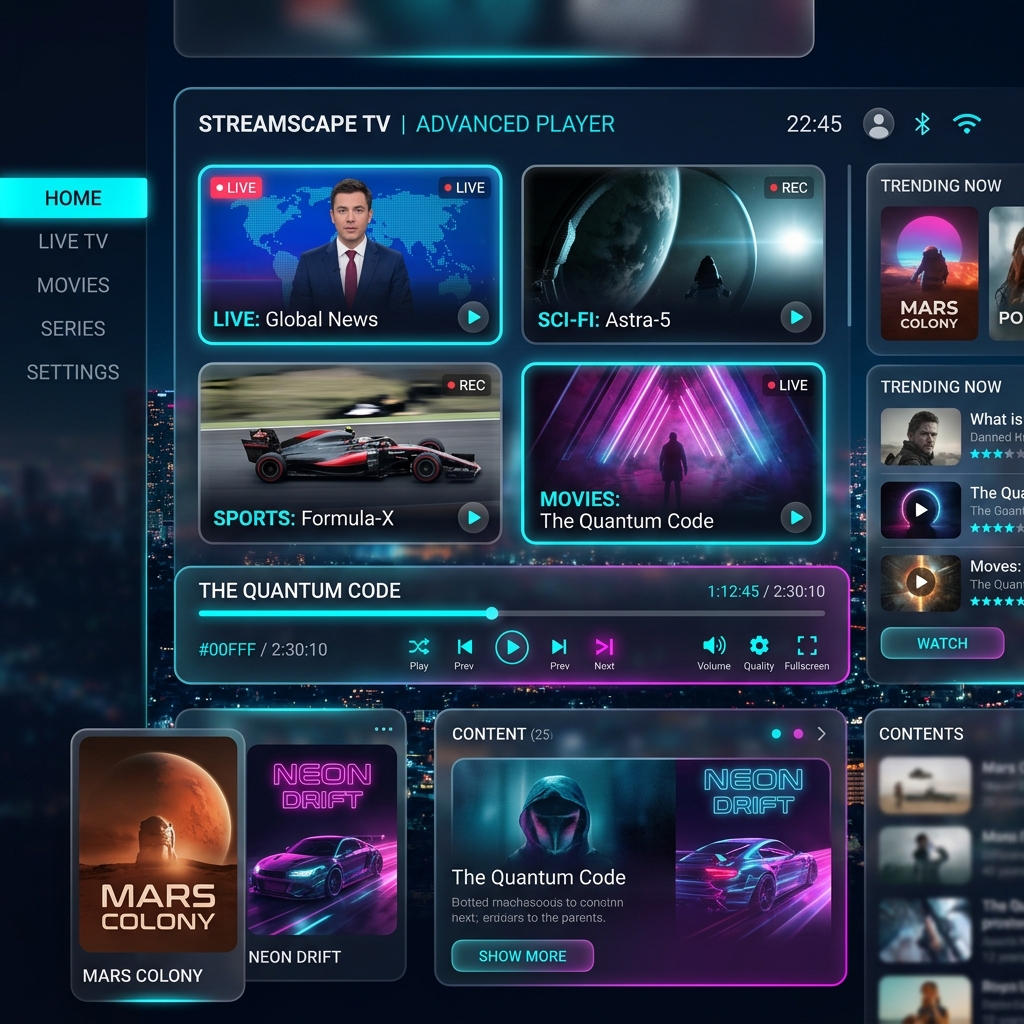
In the vast and often cluttered world of digital media players, one application stands head and shoulders above the rest for Android TV and Fire OS users: TiviMate. While IPTV Smarters is arguably the most widely used due to its cross-platform availability, TiviMate is widely considered the absolute gold standard for users who want a premium, customizable, set-top-box-like experience. This comprehensive tivimate premium guide will explore why upgrading to the paid version is essential and how to configure it to squeeze every ounce of performance out of your subscription.
Unlike many generic streaming applications that feel like blown-up smartphone apps, TiviMate was designed explicitly for the big screen. It is optimized entirely for use with a standard directional remote control (D-pad). The interface is sleek, instantaneous, and highly intuitive. However, to truly unlock its potential, you must understand how to navigate its extensive settings menu. From EPG syncing to multi-screen viewing, this tivimate premium guide will cover everything you need to know.
Free Version vs. TiviMate Premium
You can download TiviMate for free via the Google Play Store (on Android TV) or by sideloading it onto your Amazon Firestick. The free version allows you to load a single playlist and watch live TV. However, it severely limits the application’s true power. We strongly advise anyone serious about cord-cutting to purchase the Premium unlock via the ‘TiviMate Companion’ app.
Premium unlocks several critical features that elevate the viewing experience. Firstly, it allows you to add multiple playlists—perfect if you have a backup premium provider or separate VOD packages. Secondly, it unlocks the ability to manage your ‘Favorites’ list, ensuring your most-watched live channels are always front and center. Finally, Premium grants access to Catch-up TV (allowing you to rewind live broadcasts), multi-screen picture-in-picture mode, and advanced EPG (Electronic Programme Guide) customization. Without Premium, TiviMate is just a good player; with Premium, it is the best.
Initial Setup: The Xtream Codes Advantage
When you first launch TiviMate, you will be prompted to add a playlist. The app gives you several options, including entering an M3U playlist URL, logging in via Xtream Codes, or using a Stalker Portal. As emphasized in all our setup guides, you should almost exclusively use the Xtream Codes login method.
Why? The M3U method requires the app to download massive text files containing hundreds of thousands of lines of code every time it updates. This slows down the app and consumes excessive bandwidth. The Xtream Codes API, conversely, queries our database dynamically. It only downloads the data it needs at that exact moment. Furthermore, the Xtream API automatically categorizes your Live TV, Movies, and Series into beautiful, distinct folders.
To set it up:
- Select ‘Add Playlist’ -> ‘Xtream Codes Login’.
- Enter the Server URL (ensure it includes ‘http://’ and the port number).
- Enter your Username and Password (case-sensitive).
- Check the box for ‘Include VOD’ if you want your movies and series to appear.
- Click ‘Next’ and wait for the app to process the channels.
Mastering the Electronic Programme Guide (EPG)
The defining feature of TiviMate is its gorgeous TV guide. It looks and feels exactly like the premium guide you would expect from Sky or Virgin Media. However, configuring the EPG requires a slight understanding of how the app handles data, which is a crucial component of this tivimate premium guide.
If you logged in via Xtream Codes, your EPG source is automatically added. But to keep the guide fresh without slowing down your device, you need to adjust the update intervals. Navigate to Settings -> EPG. Here, you should change the ‘Update interval’ to ‘Every 12 hours’ or ‘Every 24 hours’. Do not set it to update every time the app opens, as this forces you to wait before watching TV. We also recommend enabling ‘Update on app start’ but only if the previous update is older than your selected interval. This ensures your guide is always populated without causing unnecessary lag.
Unlocking Multi-Screen Viewing
One of the most impressive features unlocked by the Premium version is Multi-screen viewing. If you are a sports fanatic, this feature alone justifies the cost. TiviMate allows you to watch up to four live channels simultaneously on the same screen, arranged in a grid.
To use this, while watching a channel, press the ‘Select’ (or OK) button to bring up the bottom player menu. Scroll to the icon that looks like multiple squares (Multi-view). Select it, and you can then choose another channel to snap into the grid. Important Note: To watch two channels simultaneously, your IPTV subscription must allow for multiple concurrent connections. If you only have a single-connection plan, attempting to open a second stream will cause one (or both) to buffer and fail.
Optimizing Playback for Zero Buffering
Even with the best compatible devices, you might experience occasional stuttering if your playback settings are not optimized. By default, TiviMate uses the ExoPlayer engine, which is excellent. However, we can tweak a few settings to improve stability during high-demand events.
Go to Settings -> Playback. First, ensure ‘Audio passthrough’ is enabled if you are using a soundbar or surround sound system. Secondly, look at the ‘Buffer size’ option. If you have a fast, stable internet connection, setting this to ‘Small’ or ‘None’ will ensure the lowest latency (so you don’t hear your neighbors cheering for a goal before you see it). If your internet connection is somewhat unstable or you are experiencing micro-stutters, increase the buffer size to ‘Large’. This forces the app to download a few extra seconds of video before playing it, smoothing over minor internet hiccups.
TiviMate Premium Checklist
- Purchase the Premium unlock via the TiviMate Companion app on an Android phone.
- Always load your subscription using the Xtream Codes API.
- Set your EPG to update every 12 to 24 hours to balance freshness and speed.
- Adjust your playback buffer size based on your internet stability.
- Ensure your subscription allows multiple connections before using Multi-view.
Final Thoughts
There is a reason TiviMate is the most highly recommended app in cord-cutting communities. Its blend of aesthetic appeal, raw speed, and deep customization makes it the undisputed king of Android media players. By following the steps in this tivimate premium guide, you will transform your television into a state-of-the-art entertainment center.
Ready to experience TiviMate exactly as it was intended? Visit our Pricing page to secure a premium subscription with robust, anti-freeze servers designed specifically for high-end media players.